

A screen recorder with audio that actually captures sound
Two kinds of audio matter: your voice on the microphone, and whatever the page is playing. Opivv records both, so your clip never comes back silent. Add it to Chrome, Edge, or Brave and share a link the moment you stop.
- Free forever
- No credit card
- Works on Chrome, Edge, Brave & other Chromium browsers
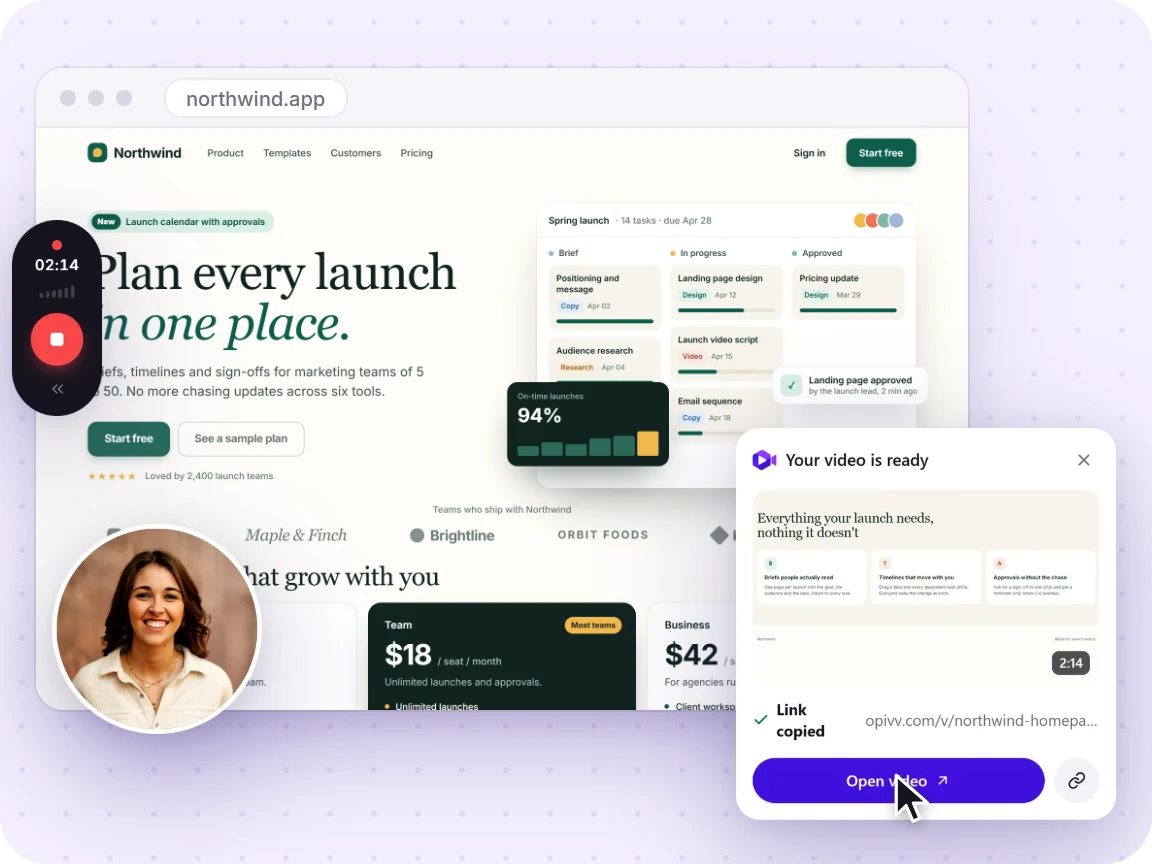
How it works
Add Opivv to Chrome
One click from the Chrome Web Store. Pin it so the record button sits in your toolbar.
Pick what to record
This tab, a window, your whole screen or just an area. Turn your camera and mic on or off.
Stop and share
The link is copied the second you stop. Paste it into Slack, email or a ticket.
Recording with audio: free vs Pro
Audio capture is not paywalled: mic and tab sound are both on the free plan. Your video is never watermarked into the pixels. On the free plan the public share page and embeds carry a small 'Made with Opivv' badge on the player, and Pro removes it.
The two kinds of audio people mean
When someone searches for a screen recorder with audio, they mean one of two things and usually both. The first is microphone audio: your voice, narrating what is on screen. The second is system or internal audio: the sound the computer itself is making, like a video playing in a tab, a notification chime, or the other person on a call.
These are separate streams and they are captured in separate ways. The microphone is a device your browser asks permission to use, so in Opivv it is a simple toggle in the recorder panel. Turn it on, choose your input, and speak. Tab and system audio is different: it comes attached to the thing you picked to record. Choose a browser tab and the sound that tab is playing rides along with the picture.
That is why the answer to "can I record my screen and the sound at the same time" is yes, but the setup matters. Opivv keeps both controls in one place so you can see, before you hit record, exactly which audio is switched on.
Read the full guide to recording with audio →Why recordings come back silent, and how to avoid it
The most common failure with any screen recorder is a finished clip with no sound. It almost always has one cause: system audio was never shared in the first place. Browser-based capture asks you to pick a source, and the option to include that source's audio is a checkbox in that picker. Miss it and you get perfect video with silence underneath, which you only discover on playback.
The second cause is the microphone. Either it was left off, or the browser grabbed the wrong input, a headset that was unplugged or a webcam mic pointing at the ceiling. Some people also record the wrong scope: full-screen capture and window capture are about the picture, so if the sound you need is coming from a web page, recording that tab is the reliable choice.
Three habits fix nearly all of it. Choose the tab when the sound lives in a tab. Tick the share-audio option in the picker instead of clicking past it. Check that the mic toggle is on and pointed at the right device before you start, not after. Then record ten seconds, stop, and play it back once. A short test costs less than re-recording a twenty-minute walkthrough.
Frequently asked
Yes. Microphone audio and tab audio are both on the free plan, with no credit card. The free limits are on length and quality, not sound: recordings run up to 5 minutes at 720p with 200 MB of storage, and free recordings are kept for 30 days. Pro ($5/month) raises that to 2 hours at 1080p or source quality with no expiry.
Start recording in about a minute
Add Opivv to your browser, hit record, and share a link the moment you stop. Free forever for everyday clips.