

Why video beats a wall of text
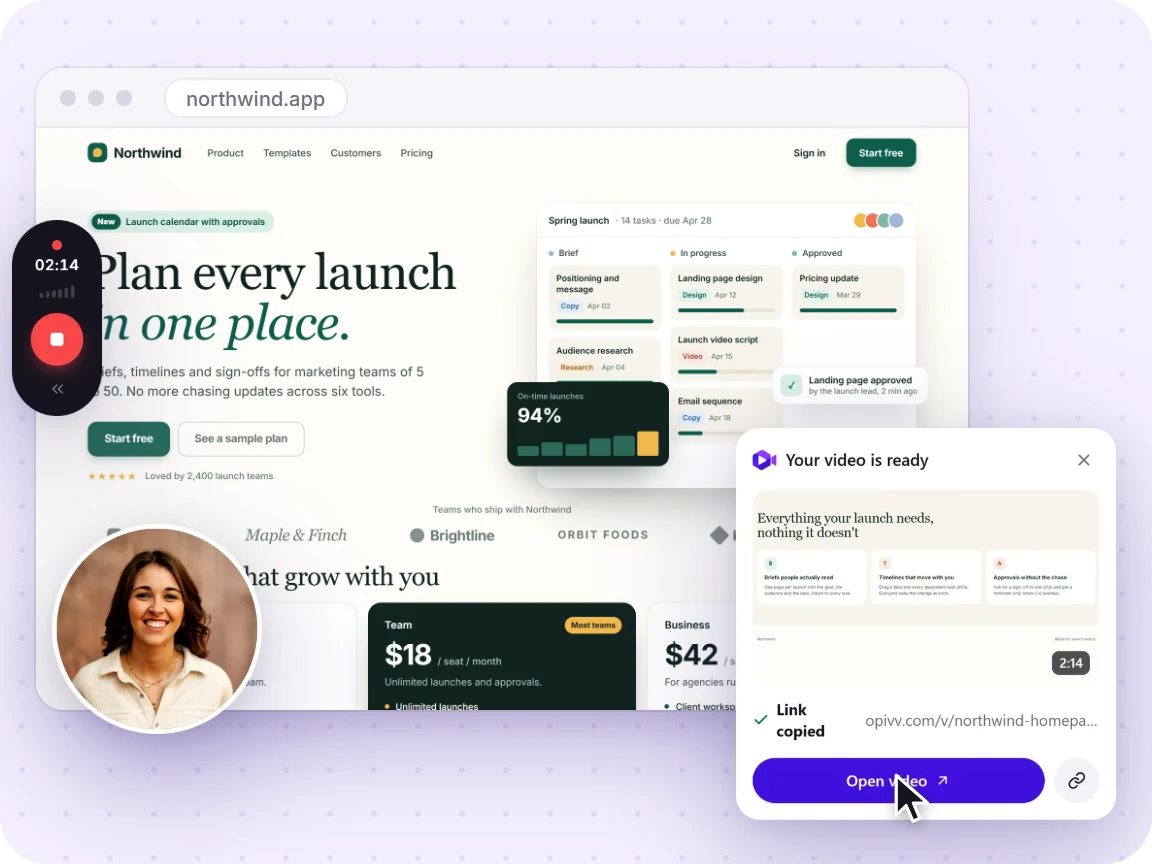
Support is full of “where do I find…” and “how do I…” questions. Written instructions are slow to write and easy to misread, so the ticket bounces back and forth. A short screen recording shows the exact path with your cursor and your voice: the customer follows along once and it’s done. Agents spend less time typing, customers wait less, and first-contact resolution goes up.
How support teams use Opivv
- Record the answer. Open the page the customer is stuck on, hit record, and narrate the steps.
- Paste the link. The share link is on your clipboard the moment you stop, drop it into the ticket.
- Reuse the best ones. Keep links to your most common answers in a saved-replies macro.
When the answer isn’t quite clear, the customer doesn’t have to describe the problem in text. They can leave a timestamped comment pinned to the exact second, or reply right on the clip with their own screen recording that shows exactly what they see on their end. The whole exchange lives on the recording as a threaded conversation, and once the fix lands you mark the thread resolved, so the ticket and the clip close together, with the full back-and-forth in one place.
New to it? Start with how to record your screen in Chrome or how to share a screen recording.
Frequently asked
How do agents share a recording in our help desk?
They record the screen, the link is copied automatically, and they paste it into the ticket reply. Customers click and watch in any browser (no sign-up or download).
Can we password-protect a recording with customer data?
Yes. On Pro you can password-protect a link, set an expiry date, and turn sharing off at any time, so sensitive walkthroughs stay private.
Is there a transcript for accessibility and search?
Pro auto-generates an AI transcript of every recording, so the answer is searchable and readable for customers who prefer text.