
A screen recorder with a webcam bubble that sits on the page
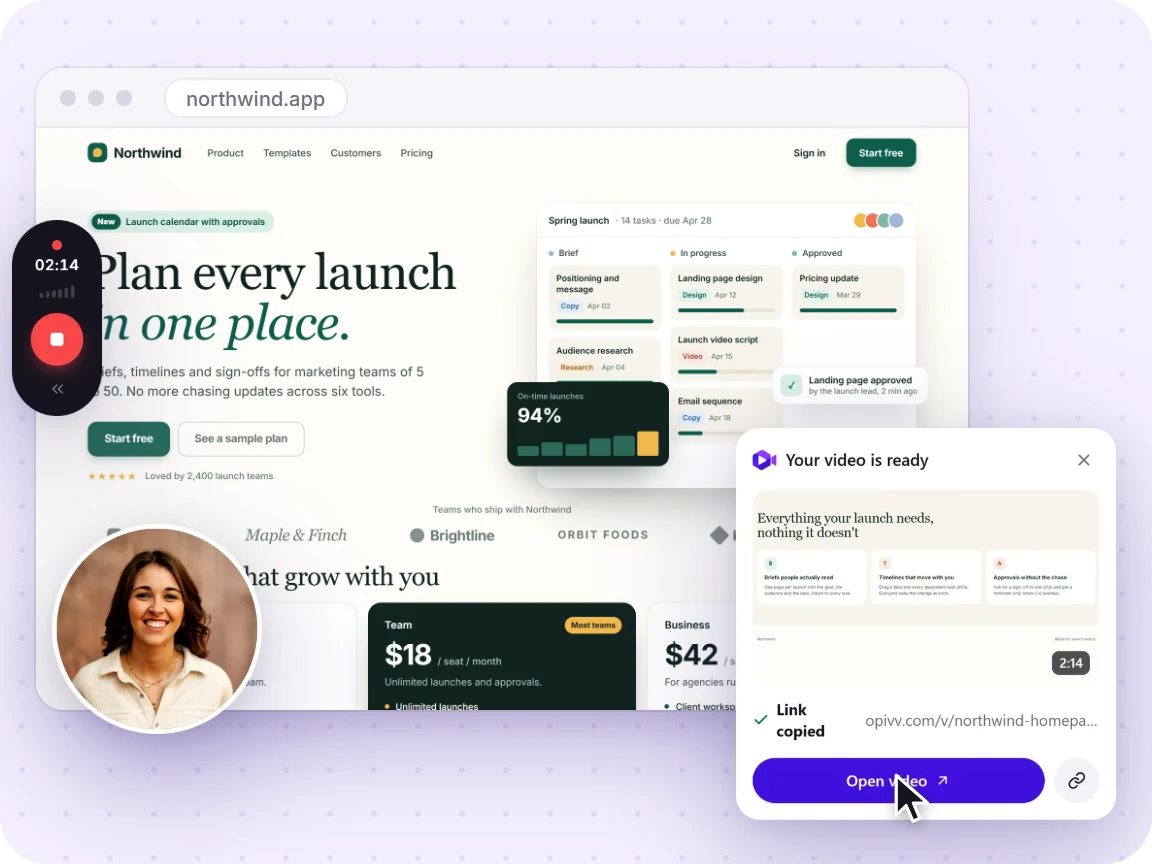
Record your screen and your camera at the same time. The round facecam bubble floats on top of whatever you are showing, you can drag it out of the way, toggle it off and back on mid-recording, or record camera-only. Free to start, no credit card.
- Free forever
- No credit card
- Works on Chrome, Edge, Brave & other Chromium browsers
How it works
Add Opivv to Chrome
One click from the Chrome Web Store. Pin it so the record button sits in your toolbar.
Pick what to record
This tab, a window, your whole screen or just an area. Turn your camera and mic on or off.
Stop and share
The link is copied the second you stop. Paste it into Slack, email or a ticket.
Recording with your webcam: free vs Pro
Your recording is never watermarked into the video pixels, and your face is never covered by anything. On the free plan, the public share page and embeds carry a small 'Made with Opivv' badge on the player; Pro removes it.
Why a face on a walkthrough lands better
A faceless screen recording reads like documentation. The same content with a camera bubble in the corner reads like a person explaining something to you, and people watch it differently. They can see when you are unsure, when you are emphasizing, when the tangent is a tangent. Tone survives the trip, which is most of what gets lost when a message replaces a conversation.
It also does quiet work on trust. A client watching a project update, a candidate watching an onboarding clip, a teammate watching a code review: seeing who is talking makes a five-minute video feel like time someone spent on them rather than a file that got dropped in a channel. That is worth more than the extra polish of a clean, faceless capture.
The practical version: keep the bubble on for the intro and the sign-off, drag it away from anything it covers, and toggle it off if a section is genuinely all screen. You do not need to be on camera for every second to get the benefit of being on camera at all.
Read the camera and mic setup guide →How to record your screen and webcam at the same time
Add Opivv to Chrome, Edge, Brave, Opera, Arc, or Vivaldi from the Chrome Web Store, then click it in your toolbar. Choose what to capture (a tab, a window, or the full screen), pick your camera and microphone, and the bubble appears on the page so you can position it before you start. Your browser asks for camera and mic permission the first time and remembers your answer.
While recording, drag the bubble to any corner, toggle the camera on or off, and press M to drop a chapter marker at any moment worth jumping back to. When you stop, the clip uploads to your private library and the share link is on your clipboard, ready to paste into Slack, an email, a ticket, or a doc.
Everything here works on the free plan: the bubble, the drag, the mid-recording toggle, camera-only mode, chapter markers, and unlimited share links. The free limits are length (5 minutes per recording), 720p quality, 200 MB of storage, and a 30-day retention window on free recordings. Pro at $5/month raises those to 2 hours, 1080p or source quality, no expiry, and adds AI transcripts, summaries, smart titles, password-protected links, the trim-and-cut editor, and viewer downloads as MP4, WebM, or GIF.
Compare all plans →Frequently asked
Yes. That is the default setup. Pick your screen source and your camera, and Opivv records both into a single video with your camera composited in as a round bubble on top of the screen. There is no second file to sync up afterwards.
Start recording in about a minute
Add Opivv to your browser, hit record, and share a link the moment you stop. Free forever for everyday clips.