
Why video tutorials win
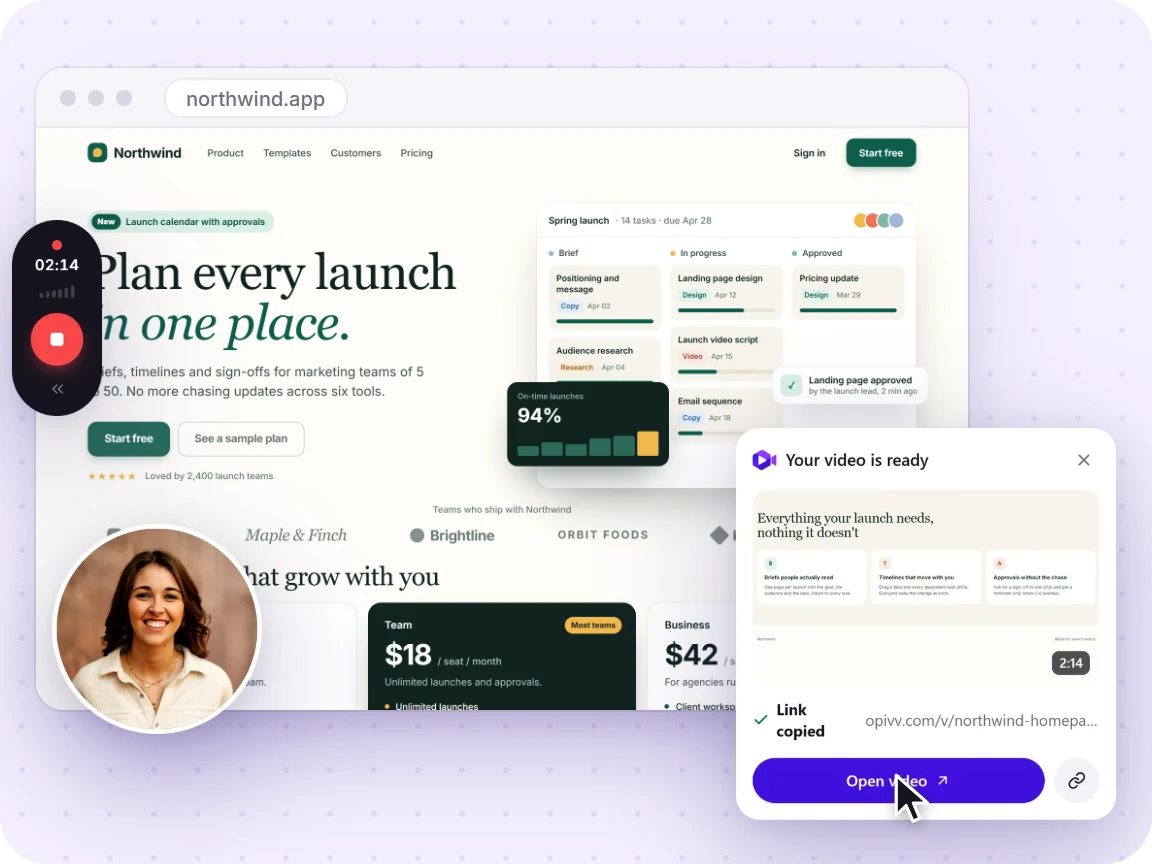
Writing a good step-by-step doc takes an hour and still leaves gaps. A screen recording shows the real thing happening, in order, with your voice explaining the why. People follow along, replay the tricky part, and don’t open a support ticket. You make it once and it answers the question forever.
Make a tutorial that sticks
- Keep it short: one task per clip, a few minutes at most.
- Add chapters so each step is jump-to-able.
- Turn on the transcript (Pro) so it’s searchable and accessible.
- Embed it in your docs, help center, or onboarding flow.
- Watch the analytics: re-record the step where viewers drop off.
When a walkthrough needs a little polish, the built-in editor (Pro) does it right in the browser: zoom in to draw the eye to a click, blur out a token or email address, add text callouts for the tricky bits, and lay a quiet music track under your voice. Nothing is destructive, and you export a clean MP4 or GIF when you’re done. And because every clip carries timestamped comments, a viewer who gets stuck can leave a question pinned to the exact second, so you answer it once, right where they need it.
How teams use Opivv for tutorials
- Record the walkthrough (screen, camera & mic) as you narrate the steps.
- Add chapters and share the link, or embed it where people need it.
- See where it loses people and tighten that step.
New to recording? See how to record your screen in Chrome or add a facecam with screen + camera & mic. Comparing tools? Here’s Opivv vs Loom and the full plan breakdown.
Frequently asked
What’s the best way to record a tutorial?
Record your screen while you narrate the steps, keep it under a few minutes, and add chapters so viewers can jump around. Opivv captures your screen, camera, and mic in one click and uploads the moment you stop.
Can viewers jump to a specific step?
Yes, add chapters and viewers can skip straight to the step they need. On Pro, the AI transcript also lets them search the walkthrough for a keyword.
Can I embed a tutorial in my docs or help center?
Yes. Every clip has an embed snippet and a clean player, so you can drop a walkthrough into Notion, a help-center article, or a README.
Do I need editing software?
No. Record, stop, share. Editing is optional. When you want polish, the built-in editor trims, cuts, zooms, blurs and adds text or music, then exports a clean MP4, but a raw take with chapters is already shareable.