
To share a screen recording, send a link instead of the file. Upload the video to a service that gives you a watch-in-browser link, or record with a tool that creates one when you stop, then paste it into email, chat or a ticket. Links avoid attachment limits (25 MB in Gmail) and can show whether it was watched.
- A link beats an attachment: no size limit for the viewer, nothing to download.
- Gmail attachments stop at 25 MB; anything bigger becomes a Google Drive link.
- Outlook.com allows 25 MB; work (Exchange) accounts default to 10 MB per email.
- Lock a link with a password, an expiry date or a list of named people.
- To know who watched, ask for an email before the video plays.
Screen recordings get big fast, often bigger than email will carry. And even when a file gets through, the other person has to download it and find something that plays it, and you never find out whether they did.
This guide covers the two ways to share a recording (a link or a file), the email limits that decide between them, the controls that keep a link private, and how to tell whether it was watched. Not recorded yet? Start with how to record your screen in Chrome.
How to share a screen recording as a link, step by step
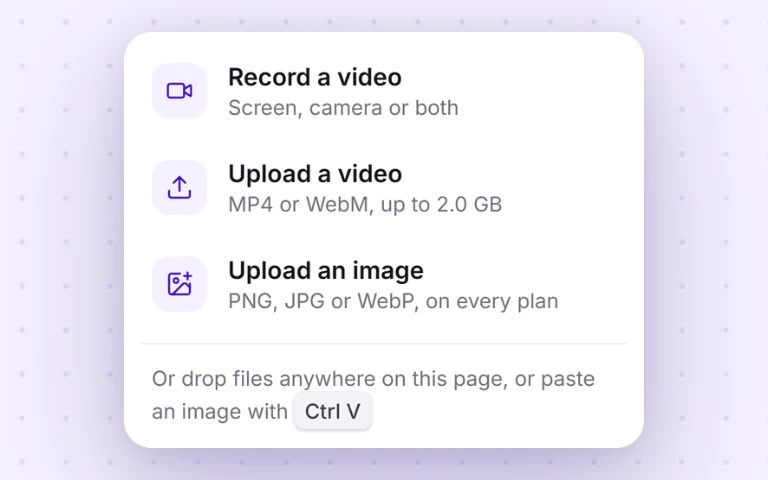
- Record it, or upload the fileRecord with Opivv (click its icon to start). If you already have a video file, upload it to a drive that makes share links, such as Google Drive or OneDrive.
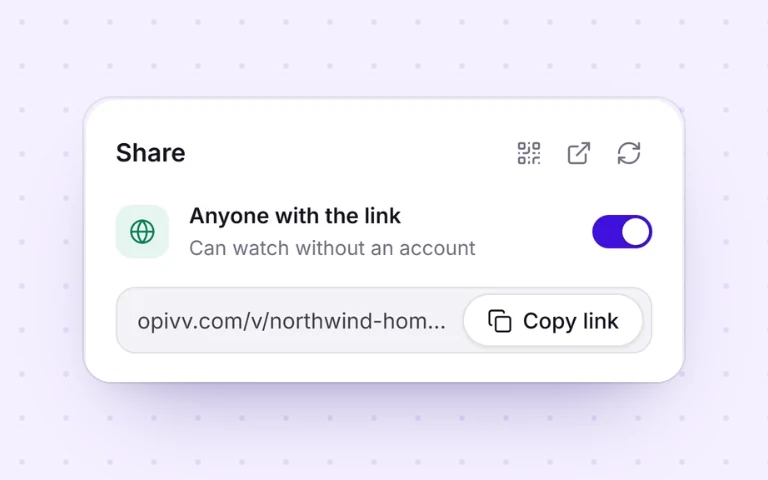
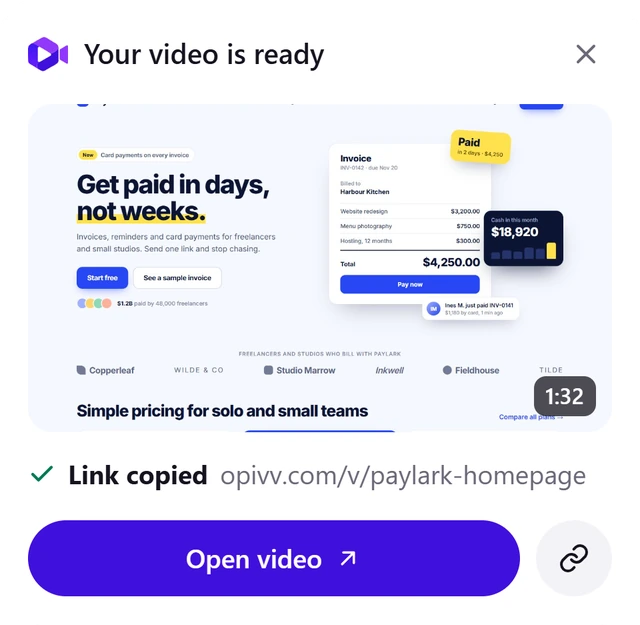
- Copy the linkWhen you stop a Opivv recording, the share link is already copied. In a drive, use its sharing option and copy the link.
- Choose who can watchLeave it open to anyone with the link, or set a Password, a Link expires date, or Ask for email to watch in the sharing panel.
- Paste it where they will see itDrop the link into email, Slack, Teams, a ticket or a doc. For Gmail or Outlook, Copy for email pastes a short animated preview that opens the video.
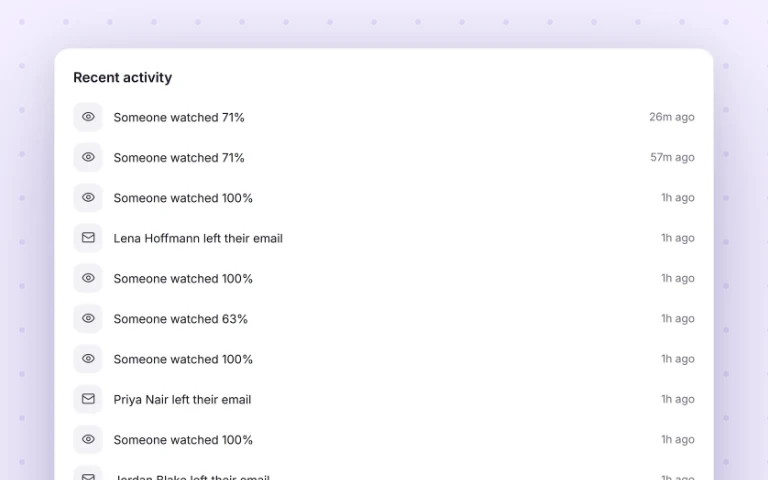
- Check that it was watchedOpen the video to see how many people watched and how far they got. Viewers can also comment at the exact second.
Should you send a screen recording as a link or a file?
| What matters | Share a link | Send the file |
|---|---|---|
| Size limit | None for the viewer | About 20 to 25 MB by email |
| What the viewer needs | A browser | A download, and a player that opens the format |
| After you send it | You can turn the link off or change who can watch | Copies stay in inboxes and downloads |
| Best for | Watching, feedback, updates | Editing, archiving, uploading somewhere else |
Send the file when the other person needs to edit it or store it. Share a link for everything else. A link from a screen recorder like Opivv also carries comments at the exact second and view counts, which a file or a plain drive link does not give you in one place.
How to send a large video file by email (Gmail and Outlook limits)
| Email service | Attachment limit | For bigger files |
|---|---|---|
| Gmail (personal account) | 25 MB | Gmail adds the file as a Google Drive link instead |
| Outlook.com | 25 MB | Attach it from OneDrive (up to 2 GB) as a link |
| Outlook with a work (Exchange) account | 10 MB per email by default | Microsoft suggests a OneDrive, Dropbox or SharePoint link |
Work and school accounts (Google Workspace or Microsoft 365) can have different limits set by an admin. Whatever the service, the answer to “how do I send a large video file” is the same: upload it, then send a link.
Before you look for a way to send a huge file, ask whether the video can be shorter. Trim the start and end, or split it into one video per topic.
How to keep a shared recording private
A link does not have to be public. In the sharing panel of each Opivv video you can add:
- Password: viewers type it before the video plays. Good for client work and internal updates.
- Link expires: the link stops working after 1, 7 or 30 days.
- Ask for email to watch: viewers enter their email first, so you know exactly who watched.
- Share with people: add people by email so only they can watch (a few people a video on Free, many more on paid plans).
Password, link expiry and the email gate are on every plan, including Free.
Can you see who watched a screen recording?
Opivv shows how many people watched each video and how far they got, and emails you when someone comments or reacts. Views are anonymous, so to know who watched, turn on Ask for email to watch before you send the link.
Viewers can comment at the exact second and react with an emoji, so feedback lands on the moment it is about, not in a separate email thread.
How to embed or email a screen recording
- Embed: open Embed in the sharing panel, choose Responsive or Fixed size, and select Copy embed code to put the player on a website or help center.
- Copy for email: pastes a short animated preview into Gmail or Outlook. Recipients see it move in the inbox and click through to the video. It works when the link is public, with no password or email gate.
- Chat and tickets: paste the plain link. Where the app shows link previews, the video’s title and thumbnail appear.
- Viewer downloads (Pro): switch on Download the video under Viewers can when someone needs the file itself.
How do I share a Zoom recording?
It depends on where Zoom saved it. Cloud recordings are on the Recordings & Transcripts page of the Zoom web portal, and hosts can share them from there with a link if their account allows sharing. Local recordings are MP4 files, saved by default in a Zoom folder inside Documents; Zoom says to send the file directly or upload it to a third-party service.
To share a local Zoom recording as a link, upload the MP4 to Google Drive or OneDrive and share it, or on Pro, upload it to Opivv to get the same link, comments and view counts as your own recordings. To record a meeting in the browser, see how to record a Zoom meeting.
Frequently asked questions
Share a link instead of the file. Record with a tool that creates a link when you stop, or upload the file to a service like Google Drive or OneDrive, then paste the link into email, chat or a ticket. The viewer watches in the browser without downloading anything.
Sources
- Gmail Help: Attachment size limits
- Microsoft Support: Sending limits in Outlook.com
- Microsoft Support: Reduce attachment size to send large files with Outlook
- Zoom Support: Finding your computer and cloud recordings
- Zoom Support: Sharing computer recordings
- Zoom Support: Managing cloud recording settings

Written by the Opivv team. We build Opivv, a screen recorder for the browser, so we write these guides from how recording really works, step by step. 7 min read, updated . All guides