A free screen recorder for students that turns work into a link
Record a narrated presentation, a group project demo, or a code walkthrough straight from your browser. When you stop, a share link is copied to your clipboard, so you can paste it into an assignment, a group chat, or a message to your tutor.
- Free forever
- No credit card
- Works on Chrome, Edge, Brave & other Chromium browsers
How it works
Add Opivv to Chrome
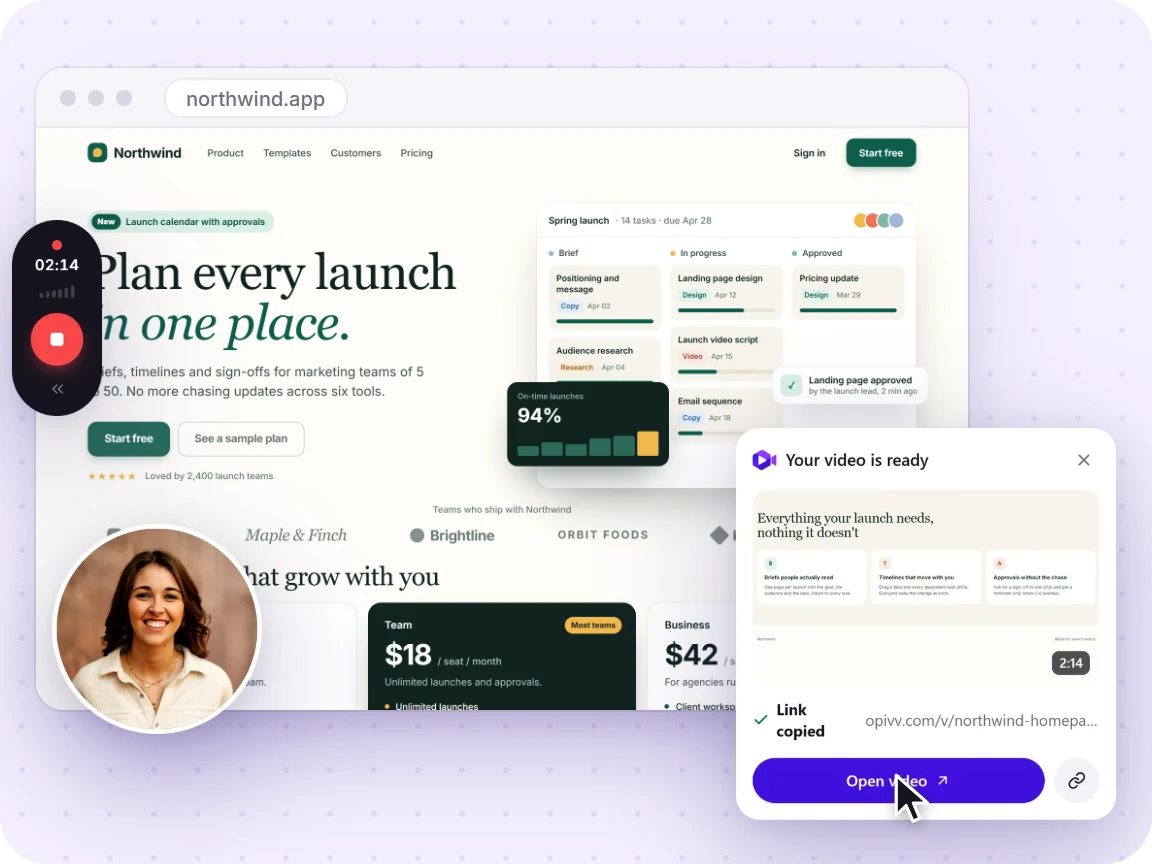
One click from the Chrome Web Store. Pin it so the record button sits in your toolbar.
Pick what to record
This tab, a window, your whole screen or just an area. Turn your camera and mic on or off.
Stop and share
The link is copied the second you stop. Paste it into Slack, email or a ticket.
What a student gets free, and what Pro adds
Your video is never watermarked into the pixels on any plan. On the free plan the public share page and embeds carry a small 'Made with Opivv' badge on the player, and Pro removes it. If a submission has to look completely unbranded, that badge is the one thing to check before you send it.
The four recordings students actually make
A narrated slide presentation is the most common one. Open your deck in a tab, turn on your mic, add the camera bubble if your brief asks for your face, and talk through it. Because you are recording a tab rather than your whole desktop, your notifications and everything else on screen stay out of it.
A group project demo comes next. One person shares their screen, walks through the thing the group built, and everyone else can watch the link later instead of trying to find a time when four schedules overlap. Press M at each section so your teammates can jump to the part they care about.
A code walkthrough sits somewhere between the two. Record your editor window, run the thing, and explain why it is built that way. That context is much easier to say out loud in two minutes than to write in a README nobody reads.
And the small one that saves the most time: asking a tutor or a classmate a question. Instead of writing three paragraphs describing the error, record twenty seconds of it happening and send the link. They see exactly what you see, including the state of your screen, which is usually the part a written description leaves out.
How to record with your camera and mic →Five minutes is usually the assignment
A lot of coursework caps video submissions at three to five minutes anyway, so the free plan is not a stopgap for most of what you will record. If your brief says "a short walkthrough" or "a two-minute demo", the free plan covers it with room to spare, at no cost and without a card.
Where you will feel the ceiling: a full lecture recap, a long capstone presentation, or a recorded viva. Pro ($5/month) raises the limit to 2 hours and adds 1080p or source quality, 20 GB of storage, and recordings that never expire. It also adds AI transcripts and summaries, which are genuinely useful for turning your own recorded revision session into notes you can search.
One thing worth planning around: free recordings are kept for 30 days. If a clip needs to stay live past the end of term, either upgrade before it expires or download it while it is still there.
Compare the plans →Frequently asked
Yes. Opivv is free forever, not a trial, and it never asks for a credit card. You get recordings up to 5 minutes at 720p, 200 MB of storage, and unlimited share links. There is no student verification to do and no .edu email required, it is simply free for everyone.
Record your next assignment in about a minute
Add Opivv to your browser, record your slides or your demo, and hand in a link instead of a file. Free forever, no credit card.