

Record any online meeting right from your browser
Zoom, Google Meet, Microsoft Teams or a webinar: record the call with its sound, keep it in your library and send the link to whoever missed it. No bot joins the call, and you do not have to be the host.
- Free to start
- No credit card
- Works in Chrome, Edge, Brave and other Chromium browsers
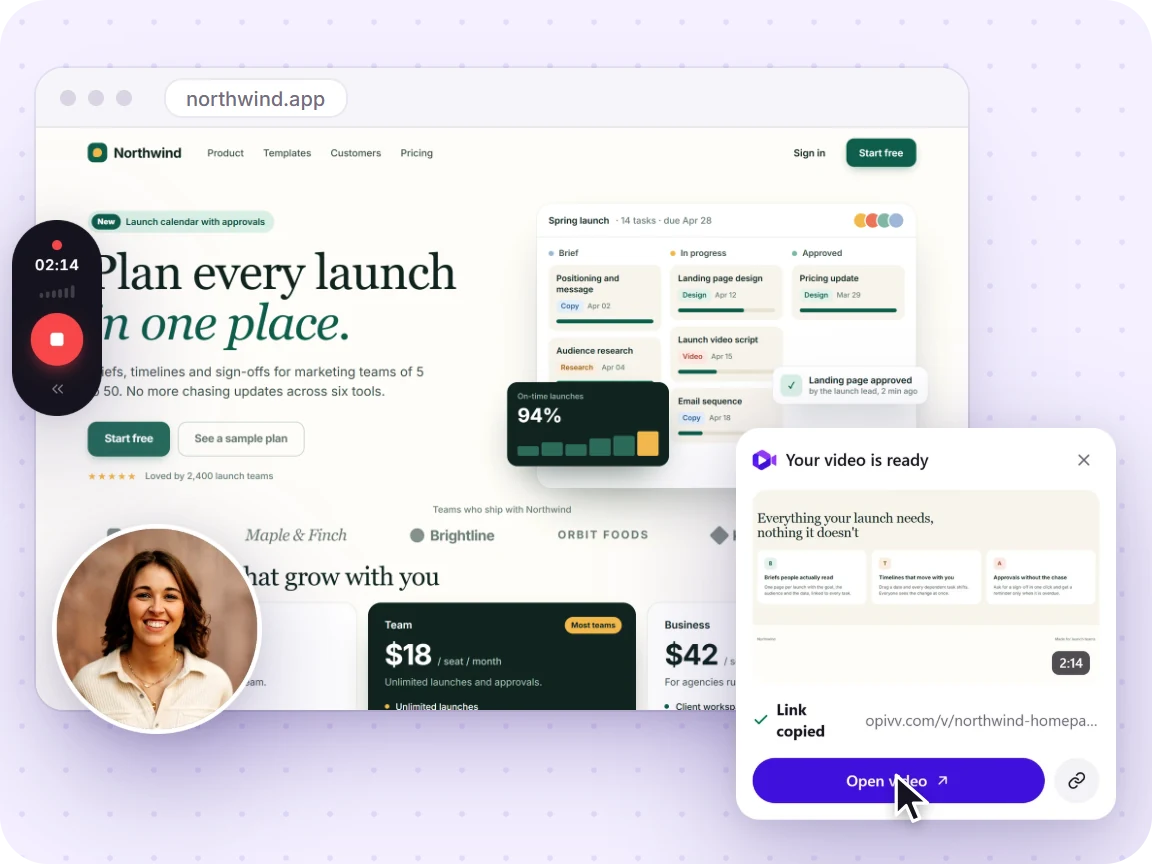
How it works
Add Opivv to Chrome
One click from the Chrome Web Store. Pin it so the record button sits in your toolbar.
Pick what to record
This tab, a window, your whole screen or just an area. Turn your camera and mic on or off.
Stop and share
The link is copied the second you stop. Paste it into Slack, email or a ticket.
Turn the recording into something people will use
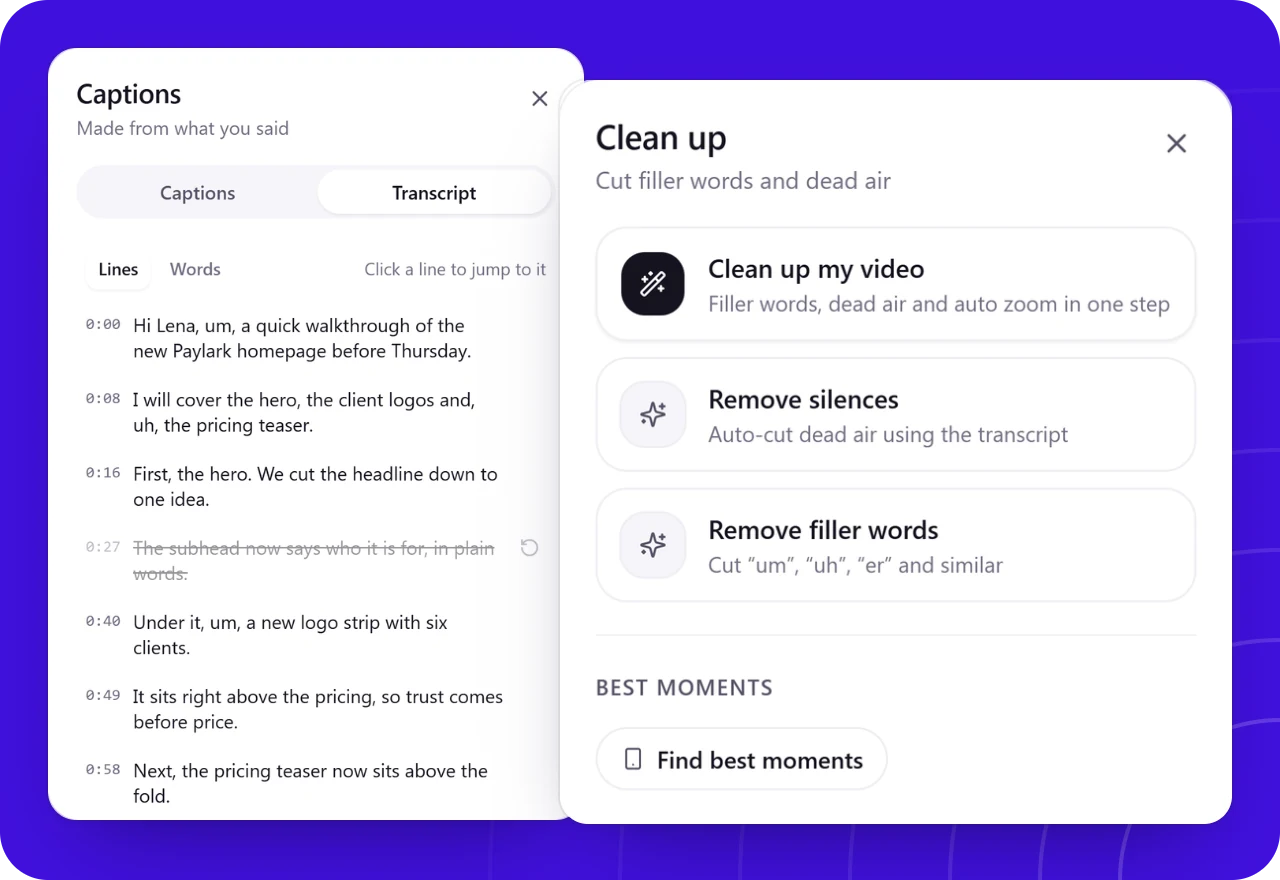
Cut the small talk from the transcript
The recording comes with a transcript you can edit like a document (on Free, for videos up to 6 minutes). Strike a line and that part of the video goes with it, and filler words and long pauses can go in one click.
- Remove the "can you hear me?" minutes
- Blur a slide that should not travel
- Undo any cut, any time
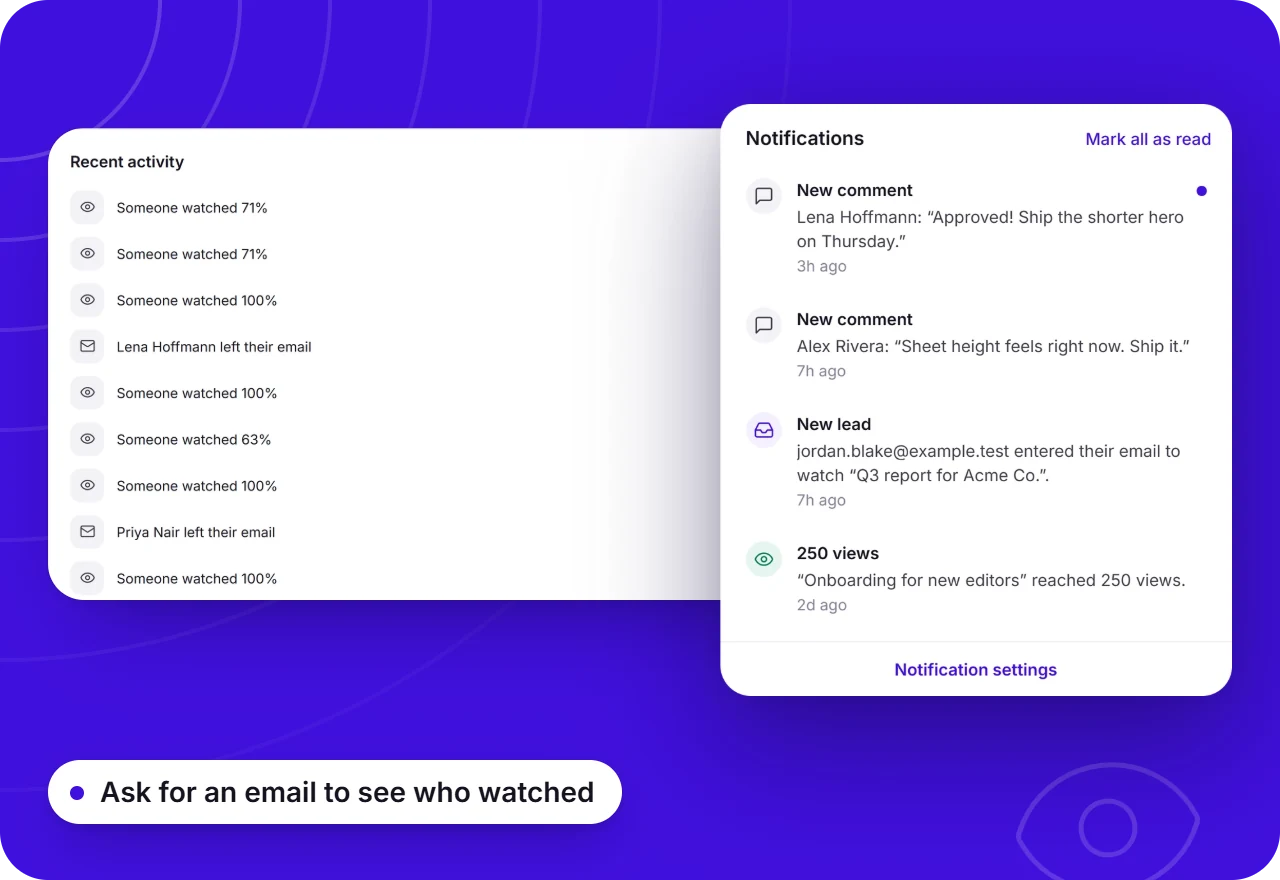
See that people caught up
See how many people opened the recording and how far they got, and get an email when someone comments or reacts. No more asking whether people saw the update.
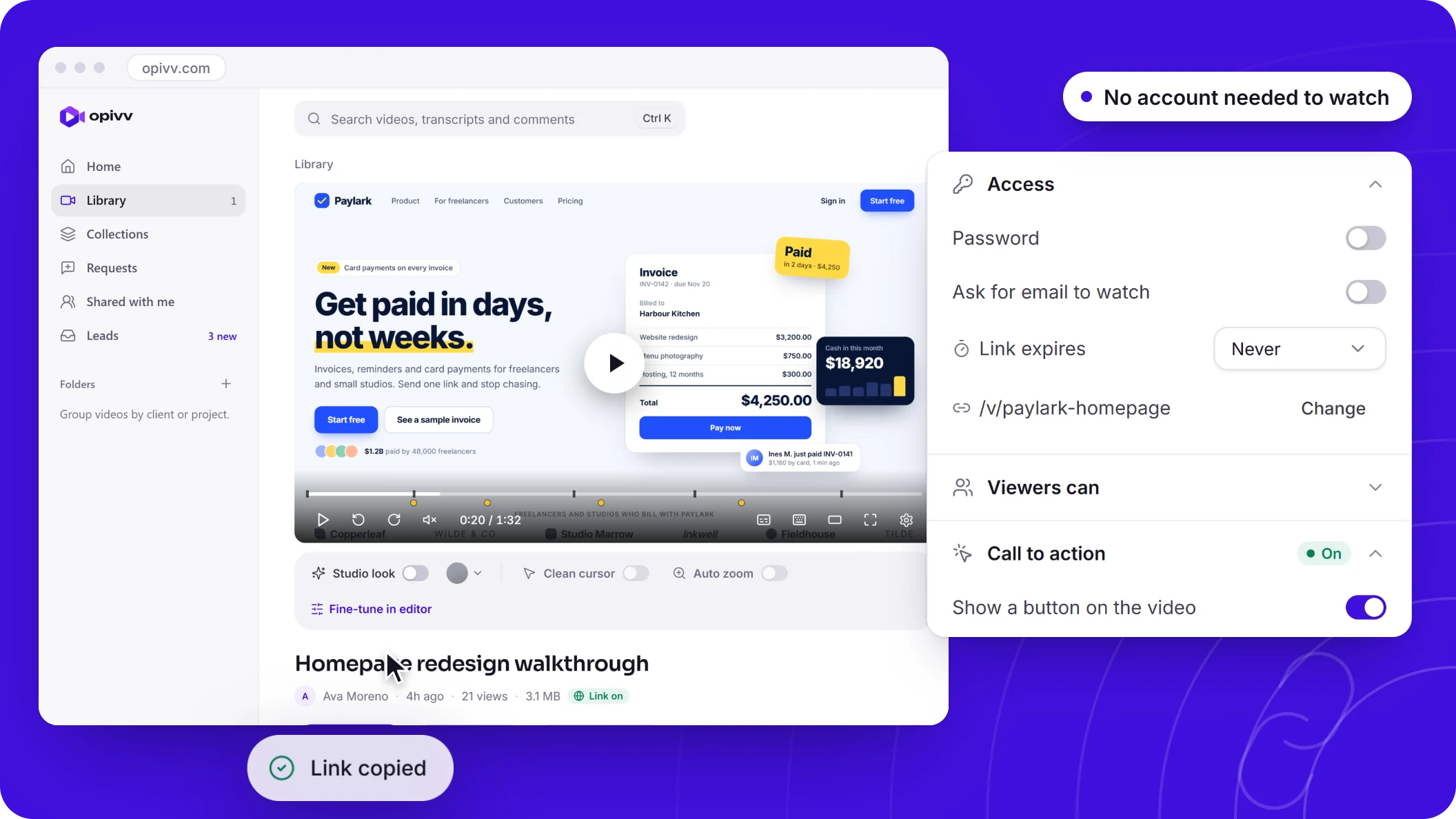
Keep it private, or send it wide
Share the link with the team, post it in the project channel or embed it in your notes. Add a password or an expiry date, on any plan, for calls that should not live forever.
Recording meetings: free vs Pro
Team records up to 4 hours per meeting and adds shared folders. Your recording is never watermarked; free share pages carry a small 'Made with Opivv' badge, which Pro removes.
How to record a Zoom, Meet or Teams call
Join the meeting in your browser: Zoom, Google Meet and Teams all run in a Chrome tab. This is the most reliable setup, because the call's sound comes straight from the tab.
Click Opivv in your toolbar, choose This tab and make sure tab audio is on. Turn your microphone on as well if you will speak, since your own voice does not play through the tab. Then press record and join the conversation as usual.
If you use the desktop app instead, pick that app's window or your entire screen. When the call ends, press stop: the recording uploads, and the link is on your clipboard, ready to drop into the meeting notes.
Read the step by step Zoom guide →Ask before you press record
Opivv does not announce itself in the meeting, so say that you are recording at the start and give people the chance to object. It is good manners, it is often your company's policy, and in many places recording a conversation without everyone's consent is against the law.
Recording a meeting you are part of for your own notes or for teammates who missed it is the common case. Sharing someone else's paid webinar or a confidential call outside the people who were in it is not, so keep recordings where they belong.
Record fewer meetings by having fewer of them
A recording helps the people who could not make it, but the bigger win is often skipping the meeting. A two-minute video with your screen and your face, watched when people have time, replaces a lot of status calls.
See how async video works →Frequently asked
Yes. Opivv records your own screen and the sound in your browser tab, so it does not need the host to enable recording and nothing joins the call. Do tell the other participants that you are recording, and follow your company's rules and local law on consent.
Record your next meeting in a minute
Add Opivv to your browser, hit record, and share a link the moment you stop. Free forever for everyday clips.
Free forever plan, no card. Make your account now and record on your computer.