
A free screencast recorder that lives in Chrome
Record your screen, your voice and your face in one take, then share the screencast as a link the moment you stop. No editor to learn, no file to upload, nothing for your viewers to install.
- Free forever
- No credit card
- Works on Chrome, Edge, Brave & other Chromium browsers
How it works
Add Opivv to Chrome
One click from the Chrome Web Store. Pin it so the record button sits in your toolbar.
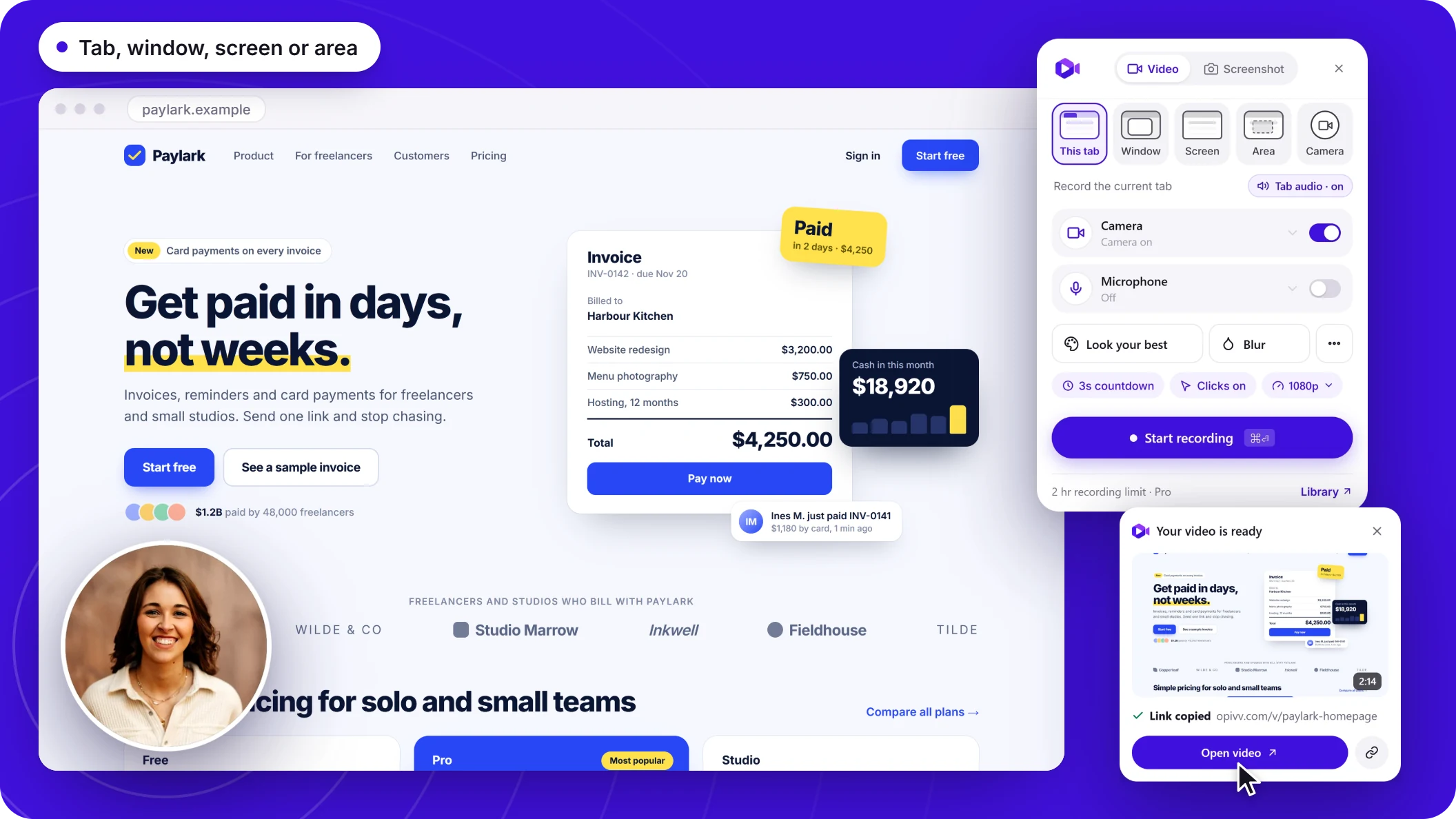
Pick what to record
This tab, a window, your whole screen or just an area. Turn your camera and mic on or off.
Stop and share
The link is copied the second you stop. Paste it into Slack, email or a ticket.
Polish it and share it without an editor
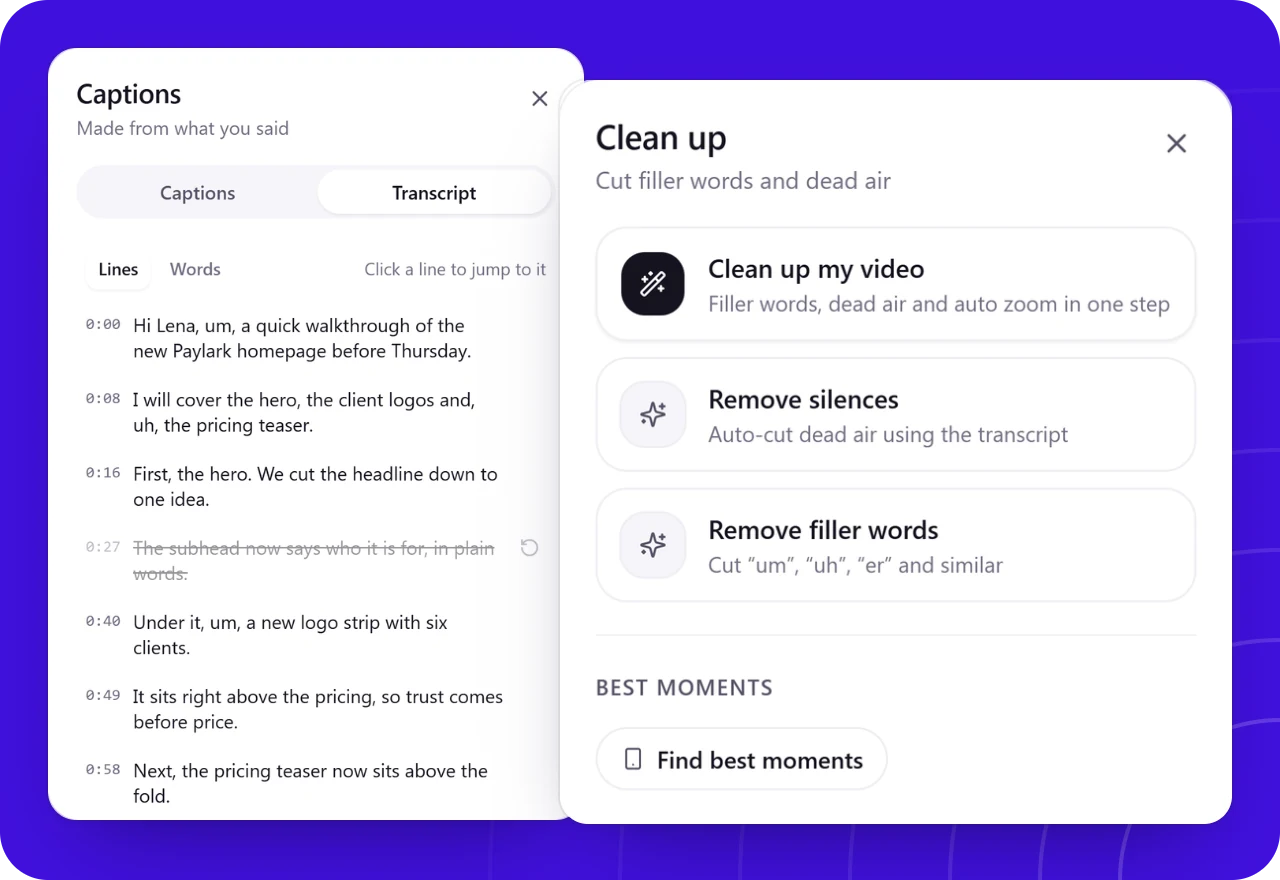
Cut the ums without touching a timeline
On every plan, Opivv finds the long pauses in the transcript and cuts them for you, and you can trim the start, cut a fluffed line or blur something private, all in your browser. It finds the filler words too (on Free, for videos up to 6 minutes).
- Long pauses found for you, free
- Filler words found for you, free on short videos
- Undo any cut, any time
One link, with the controls you need
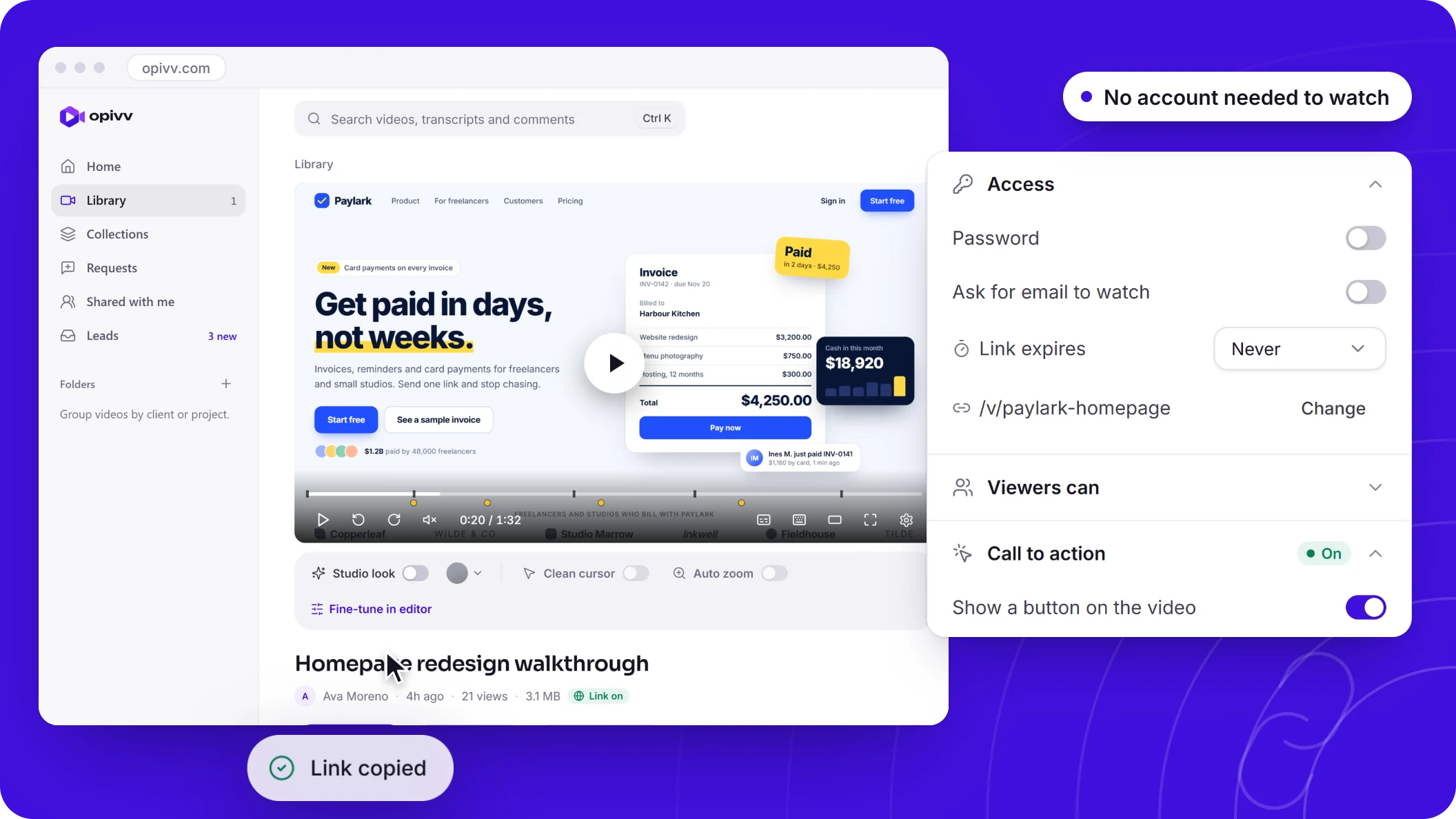
Paste the link into Slack, an email, a doc or a ticket. It plays in any browser, you can add a password or an expiry date on any plan, and on Pro let viewers download the file.
- Watch in any browser, no account needed
- Passwords and expiry dates, free
- Embed it in docs and help centers
Screencasting: free vs Pro
Your screencast is never watermarked. On the free plan, the public share page and embeds carry a small 'Made with Opivv' badge on the player, and Pro removes it.
How to make a screencast in four steps
1. Decide on the one thing it shows. A screencast that answers a single question ("how do I export invoices?") gets watched to the end. Write the outcome in one line and the three or four clicks it takes to get there.
2. Set the stage. Open the tab or app you will show, close what you will not, and turn on Do Not Disturb so notifications stay out of the recording. Have any sample data ready before you press record.
3. Record. Click Opivv in your toolbar, pick a tab, a window, your screen or an area, and choose your microphone and camera. Say what the viewer will be able to do by the end, then show it. Press M at each new step to drop a chapter.
4. Stop and share. The link is copied the moment you stop. Watch it back once at double speed, and cut any false start before you send it.
Read the full recording guide →What makes a screencast worth watching
Lead with the result, not the setup. Viewers decide in the first ten seconds whether the video answers their question, so show the finished state first and then how to get there.
Keep it short and keep it moving. Most good screencasts run two to five minutes. If yours runs longer, split it into chapters or into two videos, and cut the pauses where you were looking for a menu.
Show your face when it helps. A camera bubble makes a walkthrough feel like a person explaining something rather than documentation, which matters for updates, feedback and onboarding. For a dense, all-screen tutorial, switching the camera off is fine.
What is a screencast? →Frequently asked
A screencast is a video recording of a computer screen, usually with a voice explaining what is happening and often with the speaker on camera. The word comes from screen plus broadcast. People use screencasts for tutorials, product demos, bug reports, feedback and updates.
Make your first screencast in a minute
Add Opivv to your browser, hit record, and share a link the moment you stop. Free forever for everyday clips.
Free forever plan, no card. Make your account now and record on your computer.