
To record a Google Meet, click Meeting tools, then Recording, then Start recording. That needs an eligible plan, such as Business Standard or higher, Workspace Individual or Google One with 2 TB, and you must be the host or allowed to record. Without it, record the Meet tab with its sound using a browser screen recorder.
- Meet’s own recording needs an eligible plan: Business Standard or Plus, Enterprise editions, some Education licenses, Workspace Individual, or Google One with 2 TB or more.
- Hosts can record by default; others need to be in the host’s organization with host management off, or be made a co-host.
- Recordings save to the organizer’s Google Drive in the Google Meet folder, and the link is emailed and added to the Calendar event.
- On a free Google account, record the Meet tab with Tab audio on and your microphone on instead.
- Meet tells everyone when its own recording starts; a screen recorder does not, so tell people yourself.
Google Meet records only on certain paid plans, and only for the host or people the host’s settings allow. On a free Gmail account, as a guest, or in a breakout room, the Recording option is simply not there.
This guide covers Meet’s own recording (plans, steps, where it saves and how to share it) and how to record any Meet call, or any other video call in a browser, with Opivv. Using Zoom or Teams? See the meeting recorder.
What you need
- Chrome, Edge, Brave or another Chromium browser on a computer.
- The free Opivv extension.
- Headphones, so your speakers do not echo into your microphone.
- Everyone’s agreement to be recorded.
How to record Google Meet in the browser, step by step
- Join the call in a Chrome tabOpen the Meet link in Chrome, Edge or Brave as usual. On a computer, Meet runs in a browser tab, so there is no app to work around.
- Tell everyone you are recordingSay it when the call starts, or post it in the chat, and give people a chance to object.
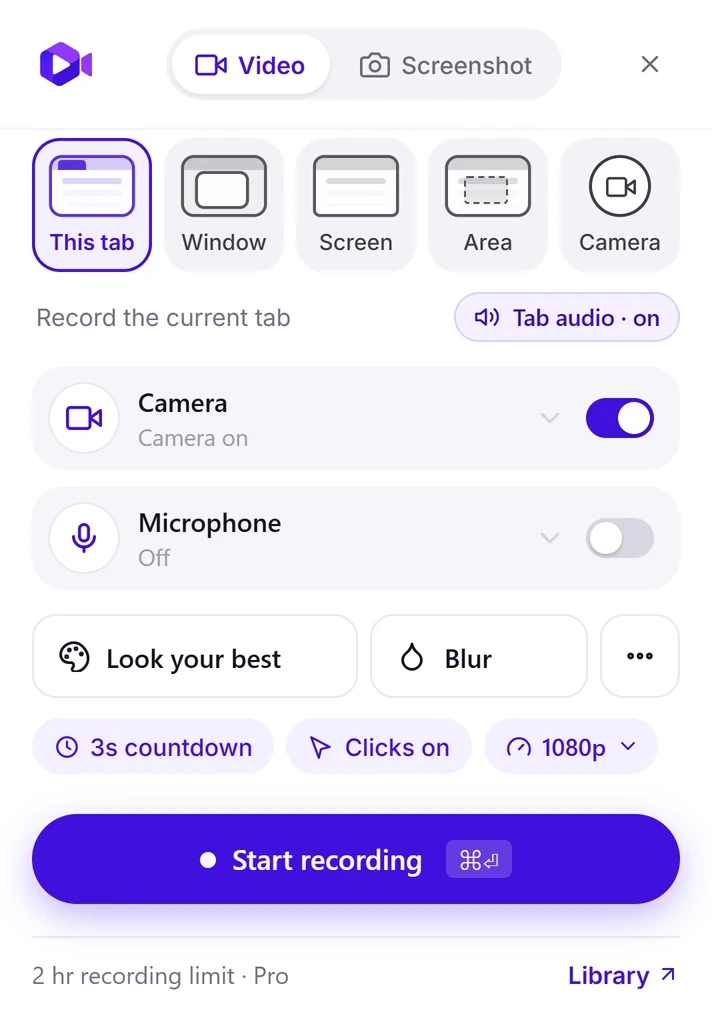
- Choose This tab with Tab audioClick the Opivv icon, pick This tab and check that Tab audio is on. That is how the other people’s voices get into the video.
- Add your microphone and startSwitch Microphone on so your own voice is recorded too, then click Start recording.
- Pin the speaker and mark topicsPin the presenter in Meet so the layout stays steady, and press M on the page at each agenda item to drop a chapter.
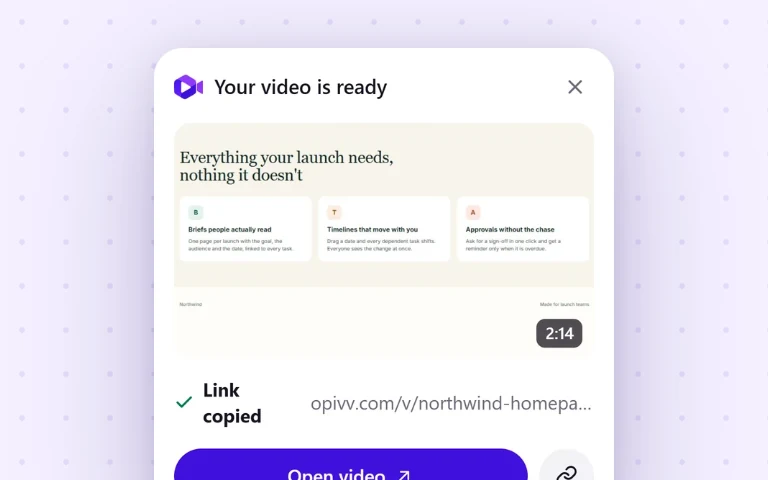
- Stop and share the linkClick stop on the recording toolbar. The video uploads, and the link is copied for the chat, an email or your notes.
Which Google accounts can record in Google Meet?
Recording is a paid Meet feature. Google lists these plans as able to record:
| Plan | Records in Meet? |
|---|---|
| Business Standard, Business Plus | Yes |
| Enterprise Starter, Standard and Plus; Essentials and Enterprise Essentials | Yes |
| Education Plus (staff licenses), Teaching and Learning Upgrade | Yes |
| Workspace Individual | Yes |
| Google One with 2 TB or more of storage | Yes |
| A free personal Google account | No |
Even on an eligible plan, an admin must allow recording, the organizer’s Drive needs room, and you need to be on a computer or an Android device. If your plan is not on the list, Meet’s own recording is out, but a screen recorder still works.
How to record with Meet’s own Recording button
- In the call, click Meeting tools at the bottom right, then Recording.
- Click Start recording, then Start in the pop-up. Everyone in the call is notified.
- To stop, open Meeting tools, then Recording, and click Stop recording. It also stops when everyone leaves, or after 8 hours.
- The video saves to the organizer’s Google Drive in the Google Meet folder, and a link is emailed to the organizer and to whoever started it.
Who can press it: the host, by default; people from the host’s organization when host management is off; and outside guests who are made a co-host. If the organizer’s account cannot record, nobody in the call can.
Why can’t I record my Google Meet meeting?
Google lists these as the usual reasons the Recording option is missing:
- Your plan has no recording, or your admin turned it off.
- You are not allowed in this meeting: host management is on, or you are an outside guest who is not a co-host.
- The organizer cannot record, so nobody else in the call can either.
- You are in a breakout room, or you joined only to present.
- Google Drive is off or blocked, or the storage is full.
- The meeting was created on a conference room device.
If none of that can change before the call, record the tab yourself with Opivv. It works on any Google account, as long as everyone agrees.
How do I share a Google Meet recording?
Meet recordings are ordinary Drive files, so you share them like any other file:
- Open the email Meet sent, or find the file in the organizer’s Drive under Google Meet.
- Select the file and click Share to add people by email, or copy its link and paste it into a chat or email.
- Check access: invited people in the organizer’s organization get it automatically, but groups and outside guests do not.
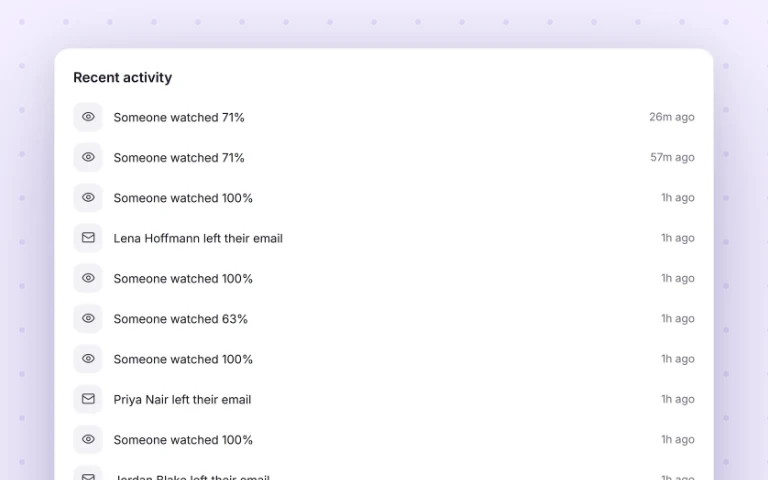
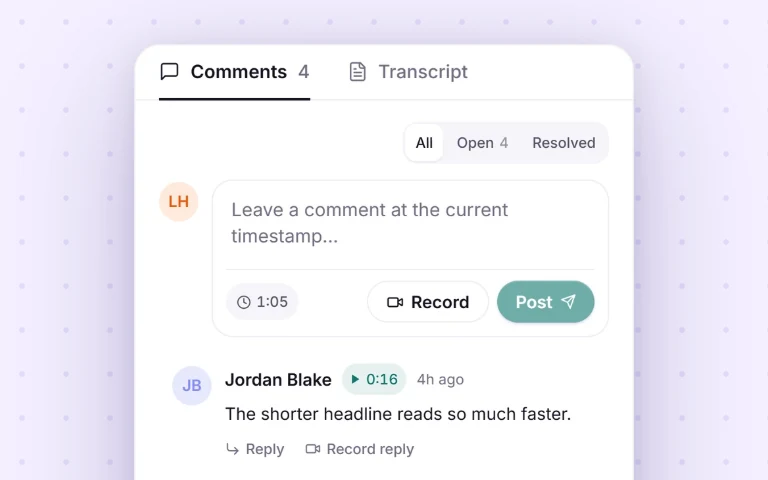
A Opivv recording is already a link when you stop. Viewers watch in any browser with no Google account, comment at the exact second, and you can add a password, a link expiry or ask for an email before watching.
How to record a video call on any platform
The same method works for almost any video call on a computer. What changes is the source you pick:
| The call runs in | Pick in Opivv | Sound |
|---|---|---|
| A browser tab (Google Meet, or Zoom and Teams on the web) | This tab, with Tab audio on | Others from the tab, you from the microphone |
| A desktop app (Zoom or Teams) | Window or Screen | Others only if Chrome shares system audio |
| A phone | Not possible | Browsers on phones cannot share the screen |
Step by step for the others: how to record a Zoom meeting and how to record a Teams meeting.
Do you need permission to record a Google Meet?
Meet tells everyone when its own recording starts. A screen recorder does not, so say it at the start and stop if anyone objects. Recording laws differ by country and state, and some require everyone’s consent.
Keep the recording with the people who were in the call. When it holds anything sensitive, put a password or an expiry date on the Opivv link.
Frequently asked questions
If your plan includes recording, click Meeting tools, then Recording, then Start recording. Otherwise, open the call in Chrome and record the Meet tab with tab audio and your microphone on, using a screen recorder. Either way, tell everyone first.
Sources

Written by the Opivv team. We build Opivv, a screen recorder for the browser, so we write these guides from how recording really works, step by step. 7 min read, updated . All guides